

How can you make excel automatically encapsulate a field with quotes?
The field has to be formatted as text (or a string). If a
field is formatted as General, Number, Currency or so forth, excel will not add
quotes around the field.
1. Open the file in excel.
2. Highlight the entire table of data.
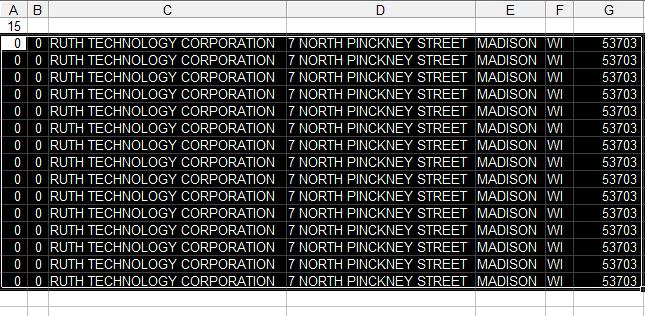
The above example just shows the first part of the table highlighted. You want to
highlight the entire table that you have.
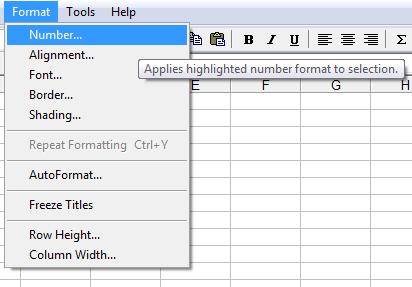
3. Go to Format and click on Number:
4. The box below, or something similar, will appear. Click on Text (or string).
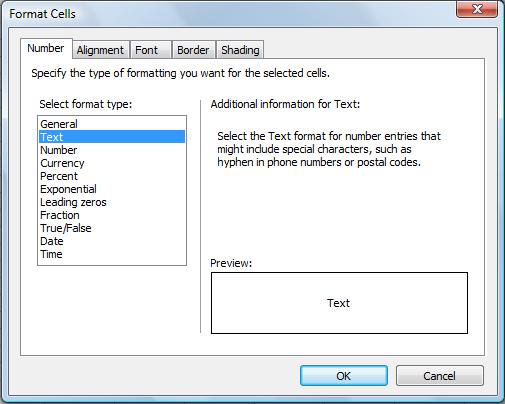
By selecting Text, when you save as csv format, a field will save that "field" with
the quotes around that field. Otherwise, excel will save your csv file as a comma-delimited
file with no quotes.
5. There is one frequent problem to be aware of but easy to resolve. What if you have no data in
the field? Even if the field is formatted as text, Excel will save that field as nothing, with
no quotes. You will have two commas next to each other. To resolve this, replace an empty field
with one blank space. Then saving as csv will have this effect:
"," "," instead of ",,"
I still can't get fields encapsulated by quotes. Now what do I do?
Open the csv file in notepad and go to Edit/Replace and replace , with "," and
that will put the quotes everywhere except the front and back. Then add those
quotes on the front and back of each row.
Or we offer turnkey
solutions where we can get your file in the format required to import.
We greatly appreciate feedback on any of our software products. Please send an e-mail to
info@1099fire.com with any
feedback or comments about any of our products or services.